
Most home networks are one misconfiguration away from being wide open to attackers. This guide walks you through exactly what to fix – no technical degree required.
If you think your home network is secure because you have a password on your Wi-Fi, think again. Most home networks have multiple vulnerabilities that take less than an hour to fix, but most people never do.
I’ve spent years working in IT security, and the number of home networks I’ve seen with default router credentials, outdated firmware, and no guest network separation is genuinely alarming.
This guide covers everything you need to properly secure your home network in 2026, from your router settings to the devices connected to it.

Why Home Network Security Matters
Your home network is the gateway to everything: your banking apps, work emails, personal photos, smart home devices, and your children’s devices.
A single compromised device on your network can give an attacker access to all of it. And with the rise of remote work, a breach at home can mean a breach at your company too.
The good news? Most home network attacks are opportunistic, they target easy victims. Make your network slightly harder to attack than your neighbor’s and you eliminate 90% of the risk.
Step 1: Secure Your Router
Your router is the front door of your network. Most people never change the default settings, which attackers know and exploit.
Change the Default Admin Password
Every router comes with a default admin username and password (usually something like admin/admin or admin/password). These are publicly listed online for every router model.
How to do it:
- Open your browser and type 192.168.1.1 or 192.168.0.1 in the address bar
- Log in with the default credentials (check the sticker on your router)
- Find the Administration or Security section
- Change the admin password to something strong and unique
- Use a password manager to store it
Update Router Firmware
Router manufacturers regularly release firmware updates that fix security vulnerabilities. Most people never install them.
How to do it:
- Log into your router admin panel
- Find the Firmware Update or Software Update section
- Check for updates and install if available
- Enable automatic updates if the option exists
Disable Remote Management
Unless you specifically need to access your router from outside your home, remote management should be turned off. It’s an unnecessary attack surface.
Where to find it: Administration → Remote Access or Remote Management → set to Disabled.
Step 2: Secure Your Wi-Fi
Use WPA3 Encryption (or WPA2 at minimum)
WEP and WPA encryption are outdated and easily cracked. Make sure your network uses WPA3 if your router supports it, or WPA2 as a minimum.
Where to find it: Wireless Settings → Security Mode → select WPA3 or WPA2-AES.
Use a Strong Wi-Fi Password
Your Wi-Fi password should be at least 16 characters long, with a mix of letters, numbers, and symbols. Avoid using your name, address, or anything predictable.
Create a Guest Network
Smart home devices (TVs, thermostats, cameras) are notoriously poorly secured. Putting them on a separate guest network isolates them from your computers and phones.
If an attacker compromises your smart TV, they can’t reach your laptop if it’s on a different network segment.
How to set it up:
- In your router admin panel, find Guest Network
- Enable it with a different name and password
- Connect all smart home devices to the guest network
- Keep computers, phones, and tablets on the main network
Step 3: Protect Your Devices
Enable Firewall on Every Device
Most operating systems have a built-in firewall that may not be enabled by default.
Windows: Control Panel → Windows Defender Firewall → Turn on Mac: System Settings → Network → Firewall → Turn On
Keep Software Updated
The majority of successful cyberattacks exploit known vulnerabilities that have already been patched, just not by the victim.
Enable automatic updates on:
- Your operating system (Windows/Mac)
- Your browser
- All applications
Install Antivirus Software
A good antivirus catches malware before it can cause damage. For most home users, Windows Defender is a solid free option. For more comprehensive protection, see our Best Antivirus Software guide.
Step 4: Use a VPN
A VPN (Virtual Private Network) encrypts your internet traffic so that even your ISP can’t see what you’re doing online. It also protects you on public Wi-Fi networks.
For home networks, a VPN is especially useful if:
- You work from home and handle sensitive company data
- You use public Wi-Fi frequently
- You want to prevent your ISP from tracking your browsing
See our NordVPN Review for our top recommendation.
Step 5: Use Strong, Unique Passwords Everywhere
The weakest link in most home networks isn’t the technology, it’s password reuse. If you use the same password everywhere and one site gets breached, every account you have is at risk.
The solution is simple: use a password manager to generate and store unique passwords for every account. Our top pick is Keeper, see our full review.
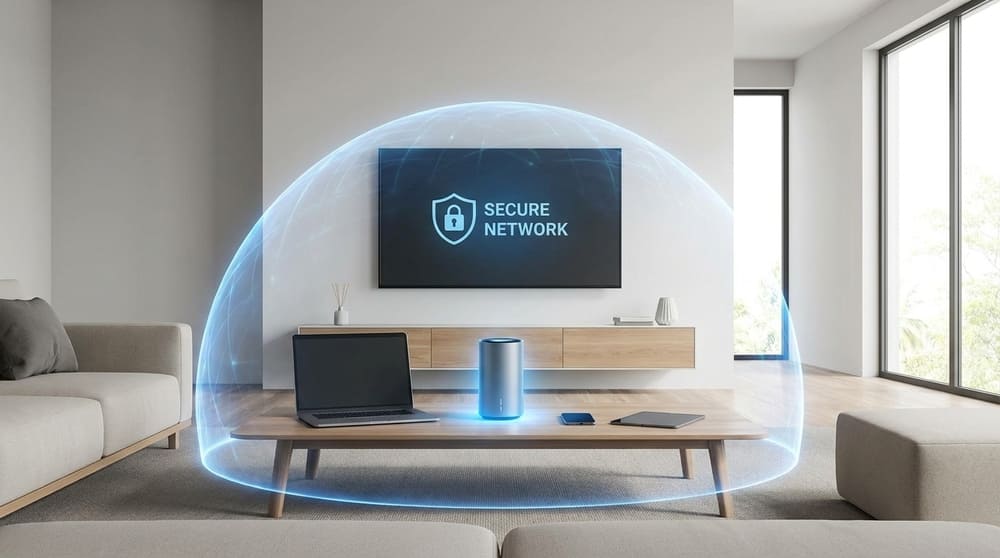
Home Network Security Checklist
Use this checklist to audit your home network:
- Changed default router admin password
- Updated router firmware
- Disabled remote management
- Using WPA3 or WPA2-AES Wi-Fi encryption
- Strong Wi-Fi password (16+ characters)
- Guest network set up for smart devices
- Firewall enabled on all computers
- Automatic software updates enabled
- Antivirus installed
- Using a password manager
- VPN installed (optional but recommended)
If you can check all of these boxes, your home network is more secure than 95% of households.
Recommended Tools
| Tool | Purpose | Our Rating |
|---|---|---|
| Keeper | Password Manager | ⭐⭐⭐⭐½ |
| NordVPN | VPN | ⭐⭐⭐⭐½ |
| Bitdefender | Antivirus | ⭐⭐⭐⭐½ |
You Might Also Be Interested In
- Keeper Password Manager Review 2026
- NordVPN Review 2026: Is It Still the Best?
- Best Antivirus Software 2026: Complete Guide
- Cybersecurity Solutions for Small Business 2026
Affiliate Disclosure: CyberPickr may earn a commission if you purchase through links on this page. This does not affect our editorial independence. Read our full disclosure.